
They move together
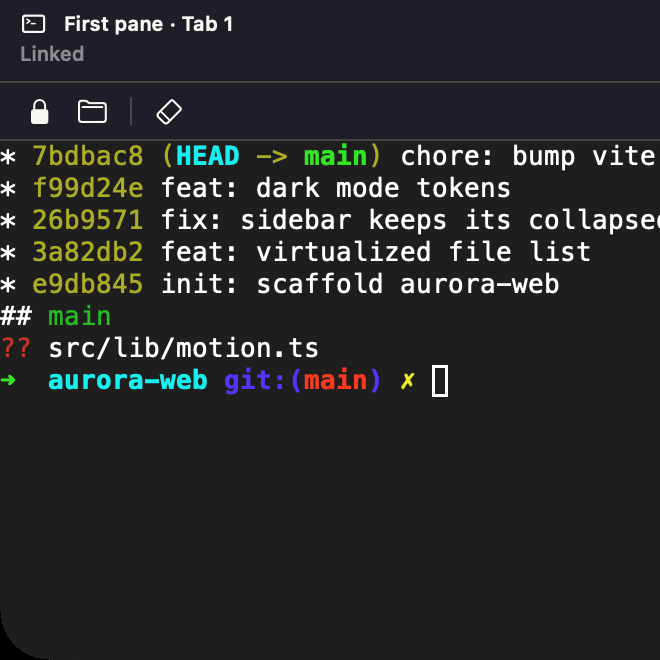
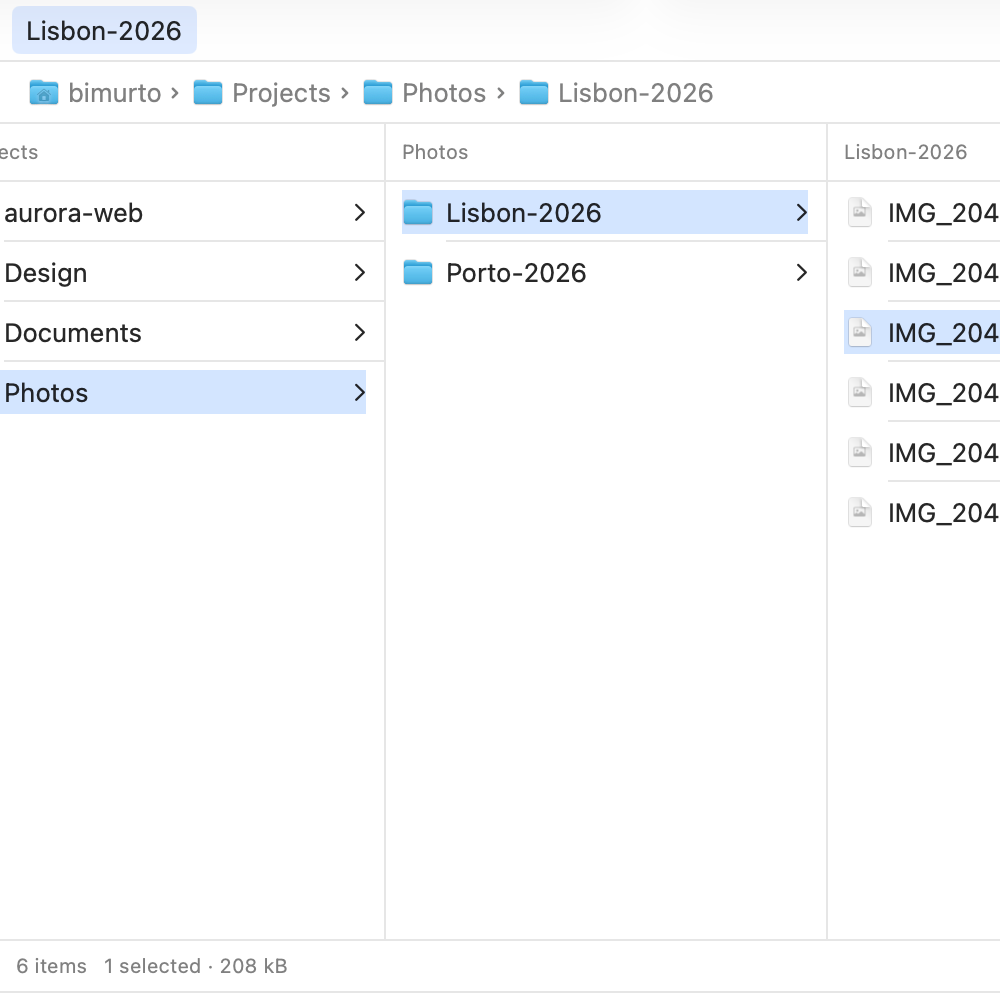
At an idle prompt, cd moves the pane and opening a folder moves the shell. In zsh, bash and fish.Unlinked, each keeps its own place. Link again and the shell catches up at the next prompt.
Terminal linked to the pane
Nine themes, light and dark
A theme recolors the panes, the sidebar and the accent. The terminal follows light or dark, or takes one of seven color schemes, and imports iTerm2 schemes.
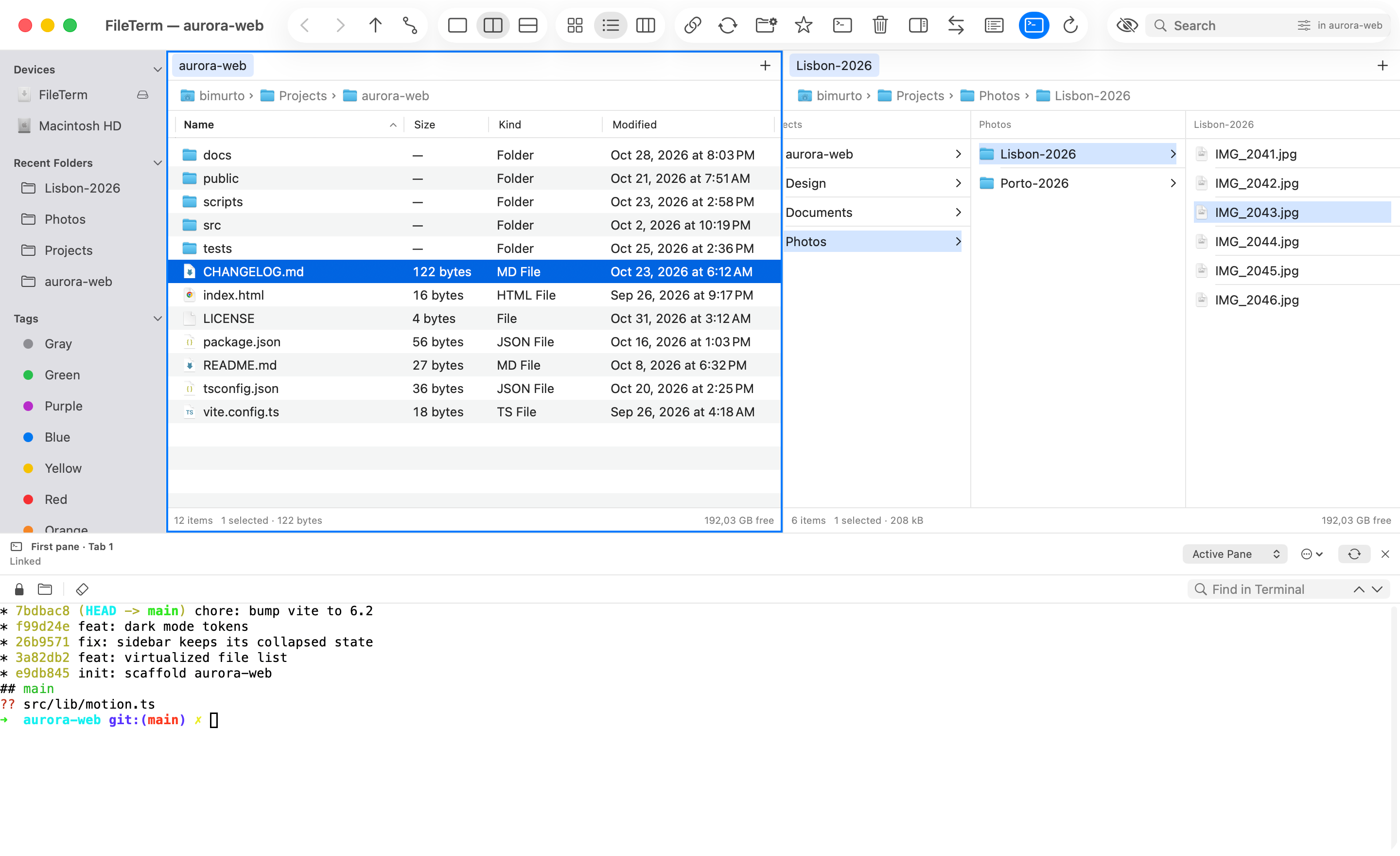
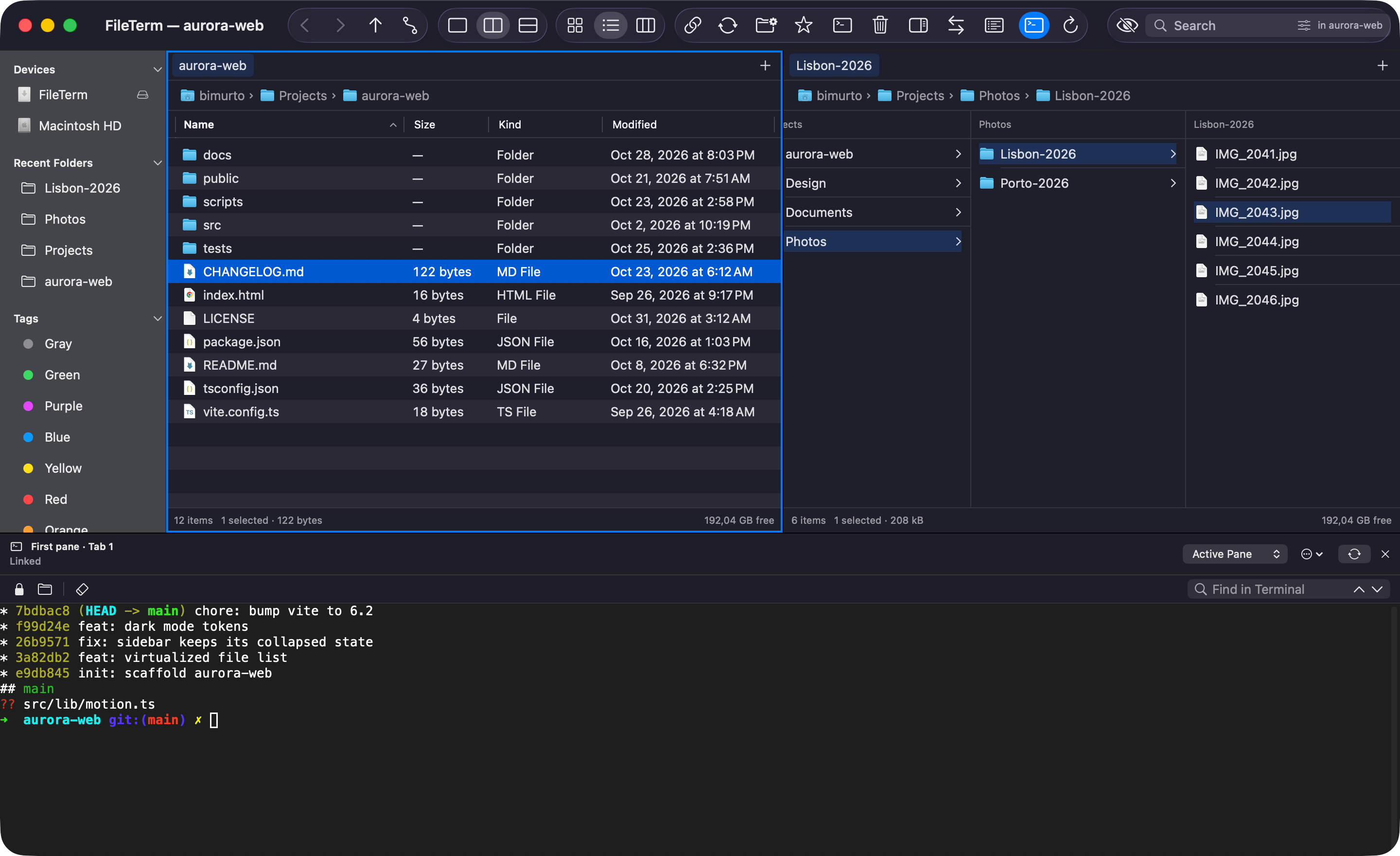
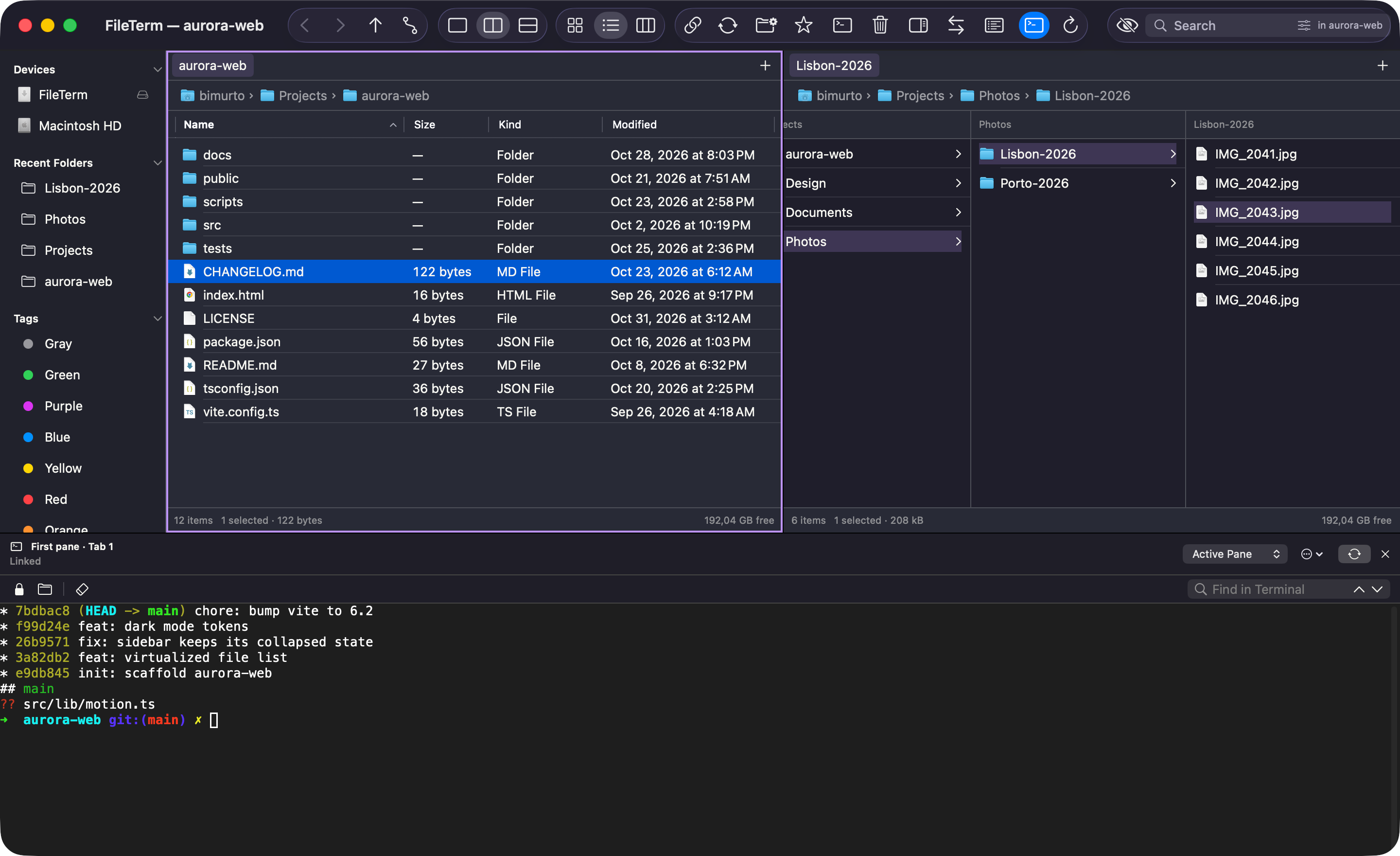
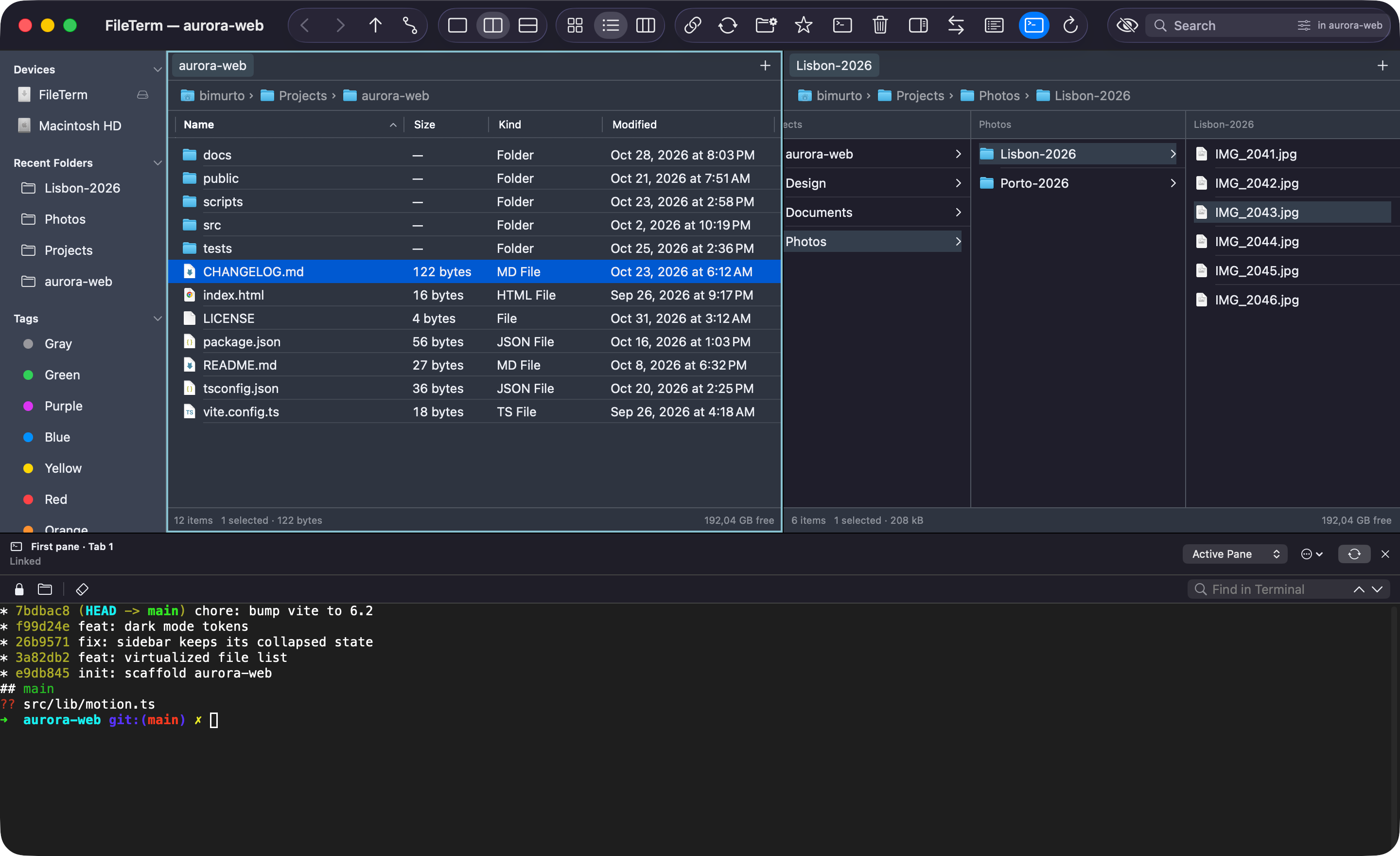
Theme: Default, in light modeScreens captured from FileTerm 0.1.0 on macOS 26.
What else it does
Tabs in every pane
Each tab keeps its own folder and history.
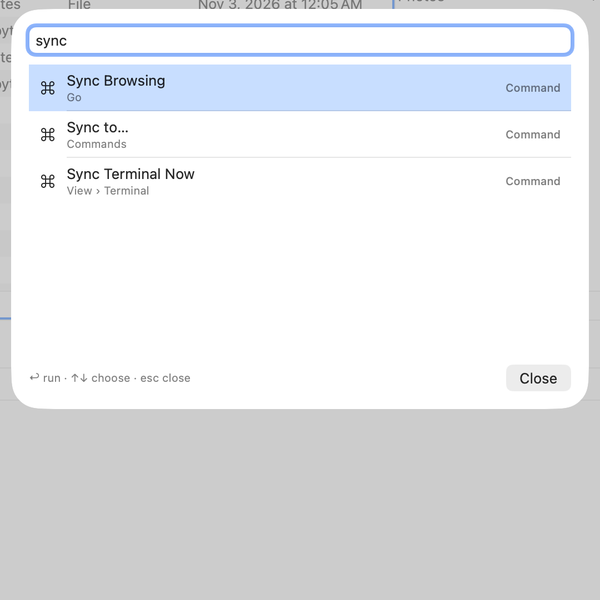
Quick Open
Press Esc and type any command, folder or favorite.
The link, recorded
Typing cd moves the pane. Double-clicking a folder moves the shell.
One transfer queue
Pause, reorder and verify every copy with SHA-256.
Three views
Icons, list or columns, chosen per tab.
Batch rename
Ordered rules with a live before and after.
Folder sync
See every change and untick any before it runs.
Keyboard shortcuts
| Command | What it does | Menu | Shortcut |
|---|---|---|---|
| Getting around | |||
| Quick Open | Find any command, folder or favorite | Go | Esc |
| New Tab | Open the same folder in a new tab | File | ⌘T |
| Close Tab | Close the current tab | File | ⌘W |
| Previous or Next Tab | Move through the active pane’s tabs | Window | ⇧⌘[ ⇧⌘] |
| Select Tab 1 to 5 | Jump straight to a tab | Window | ⌘1 – ⌘5 |
| New Window | Open another window | File | ⌘N |
| Quit and Keep Windows | Quit and restore windows next time | FileTerm | ⌥⌘Q |
| Terminal | |||
| Show Terminal | Hide it and the shells keep running | View | ⌃` |
| Focus Terminal or Pane | Move the keyboard between the two | View › Terminal | ⌃⌥` |
| Select and find | |||
| Quick Select | Select by name, extension or tag | Edit | ⌘S |
| Find | Search names, tags or file contents | File | ⌘F |
| Select All | Everything in the active pane | Edit | ⌘A |
| Invert Selection | Swap selected and unselected | Edit | ⇧⌘I |
| Show Hidden Items | Dotfiles in every pane, dimmed | View | ⇧⌘. |
| Refresh | Reload the tabs in this window | View | ⌘R |
| Files | |||
| Open | Open the selection | File | ⌘O |
| Quick Look | Preview without opening | File | ⌘Y |
| Get Info | Permissions, tags and the default app | File | ⌘I |
| New Folder | Create a folder and name it | File | ⇧⌘N |
| New Folder With Selection | Move the selection into a new folder | File | ⌃⌘N |
| Duplicate | Copy in place under a new name | Commands | ⌘D |
| Move Items Here | Move what you copied into this folder | Edit | ⌥⌘V |
| Move to Trash | Local items go to the Trash | Commands | ⌘⌫ |
| Undo | Undo the last local file operation | Edit | ⌘Z |
Every command can take a new shortcut in Settings › Shortcuts, which warns you about clashes. The command reference lists all of them.
Works
with
Servers, shells and archives
SFTP: Your ssh config and agent
S3: And S3-compatible storage
SMB: Mac and NAS shares
WebDAV: Over HTTP or HTTPS
FTP: Plain or over TLS
B2: Backblaze
NFS: Unix shares
zsh: Follows the folder
bash: Follows the folder
fish: Follows the folder
zip: Browse it like a folder
7z: And rar, to extract
Open your first folder
The first release is being prepared. Until then, build it from source with Xcode in a few minutes.
No release has been published yet. The download will appear here, and on the releases page.
git clone https://github.com/bimurto/file-term.git ~/Developer/file-term
cd ~/Developer/file-term
bash scripts/fetch-dependencies.sh
bash scripts/generate-project.sh
open FileTerm.xcodeproj
Needs Xcode 16 or later. Then choose FileTerm › My Mac and press ⌘R. Details in the README.
Questions
macOS says it can’t check FileTerm. How do I open it?
FileTerm isn’t notarized by Apple yet, so macOS asks the first time. On macOS 15 Sequoia and later:
- Open FileTerm once and click Done when the warning appears.
- Open System Settings › Privacy & Security.
- Scroll down, click Open Anyway next to FileTerm, and confirm with your password.
On macOS 14 Sonoma, Control-click FileTerm in Applications and choose Open. Or, from a terminal:
xattr -dr com.apple.quarantine /Applications/FileTerm.appEach update is signed again, so macOS may also ask once more for access to Desktop, Documents and Downloads.
Is it really free?
Yes. FileTerm is open source under the MIT License. There’s no account, no trial and nothing to buy. The code is on GitHub.
Which Macs does it run on?
Any Mac with macOS 14 Sonoma or later. The app is a universal build, so it runs natively on Apple silicon and on Intel.
Does it collect any data?
No. There’s no analytics and no crash reporter, and the log stays in memory until you quit. FileTerm only goes online when you connect to a server, or when you check for updates, which reads the latest release from GitHub. Automatic checks are off unless you turn them on.
Which shells follow the folder?
zsh, bash and fish. FileTerm loads a small integration script for each session and doesn’t edit your startup files. Other shells work in the terminal, just without following.
Can I keep my own terminal app?
Yes. File › Open in Terminal opens the current folder in Terminal, iTerm, Ghostty or Warp, whichever you pick in Settings. You can hide the built-in terminal and never see it.
What isn’t built yet?
Google Drive, OneDrive, Dropbox and Rackspace connections, syncing favorites through iCloud, resuming a transfer after a restart, previews of remote files, and languages other than English. The limits page lists everything.
Where do I report a bug or ask for a feature?
Open an issue on GitHub. Include your macOS version and the steps that cause it.